 PixelVision Lab
Resize
Exact pixel dimensions or a percentage, with the aspect ratio locked by default. Resampling is smooth, so a downscaled photo stays clean.
Resize, compress, convert, crop, rotate, filter and batch-process your images at full quality — right on your phone, with no account and no upload.
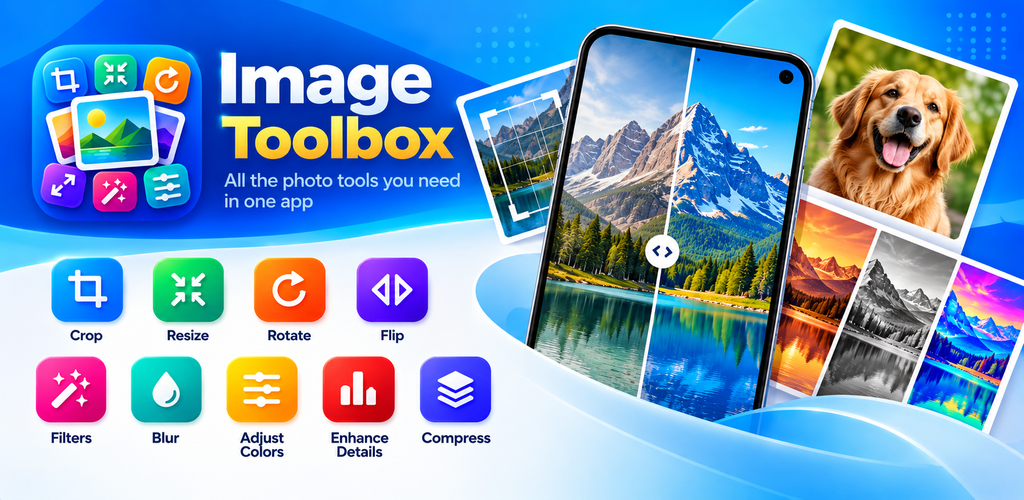
Taken straight from the Play Store listing. Every tool opens to a single, obvious control panel.
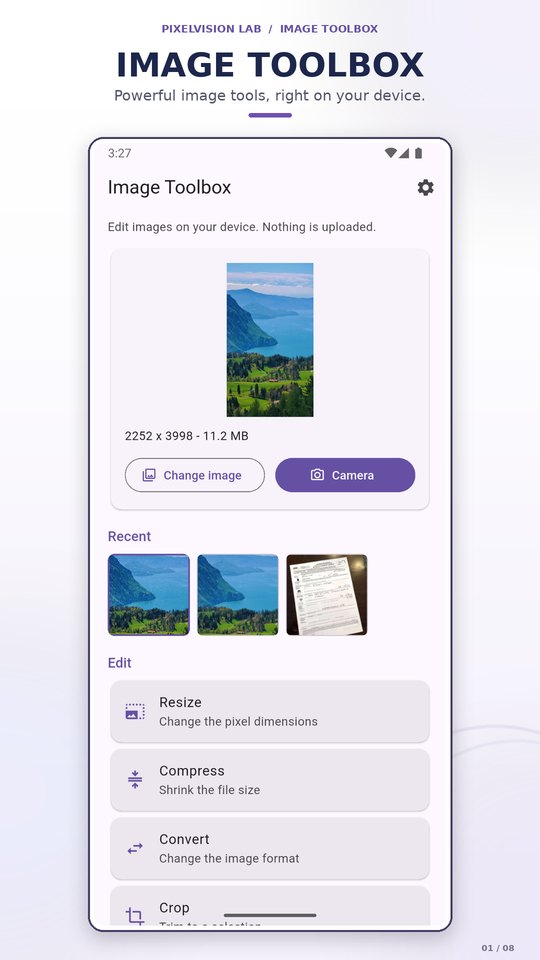
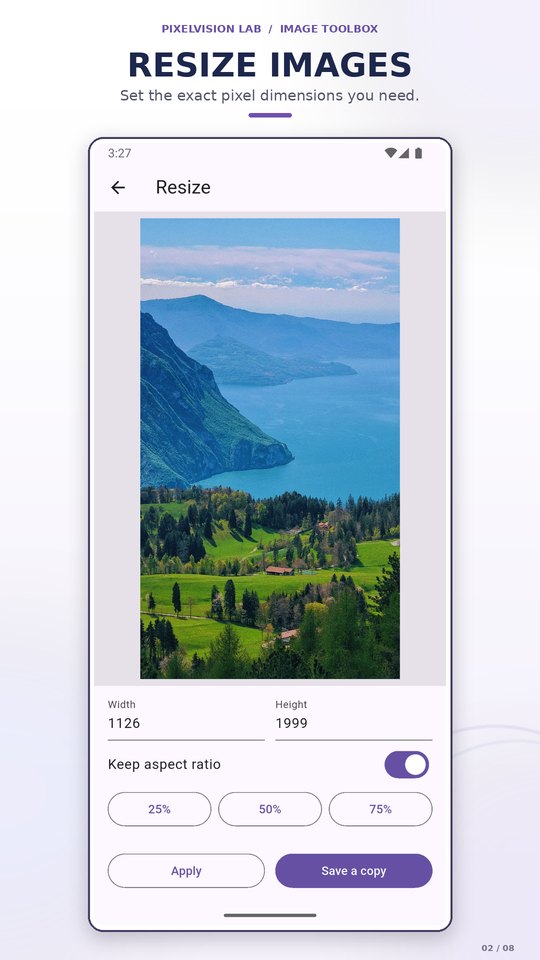
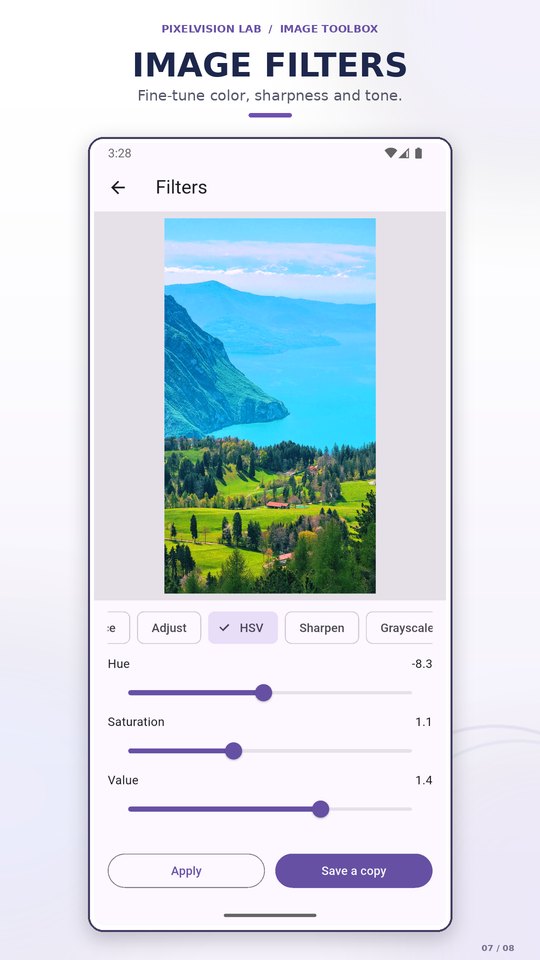
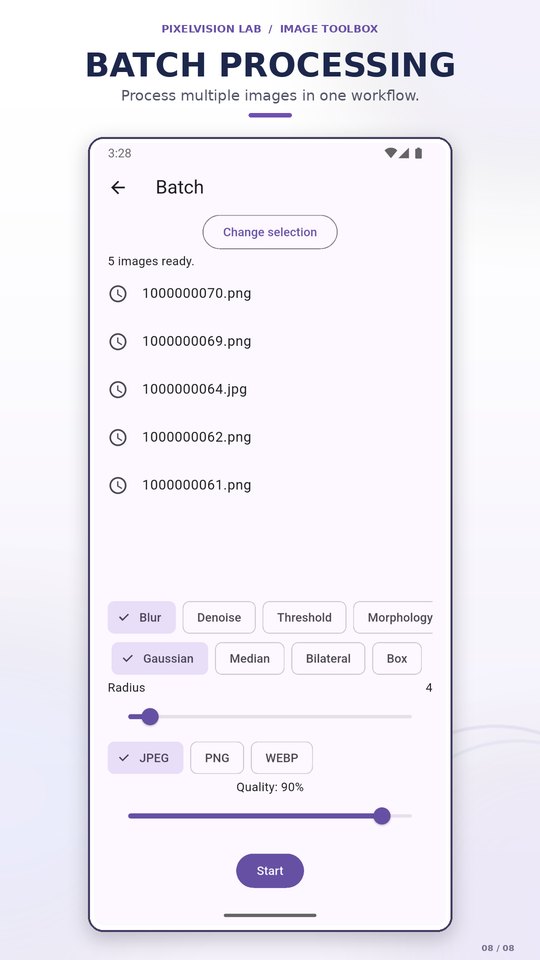
Scroll horizontally for all eight screens.
Ten tools, grouped into edit, filters, metadata and batch. Each one opens to a single control panel and applies to the image you have open.
Exact pixel dimensions or a percentage, with the aspect ratio locked by default. Resampling is smooth, so a downscaled photo stays clean.
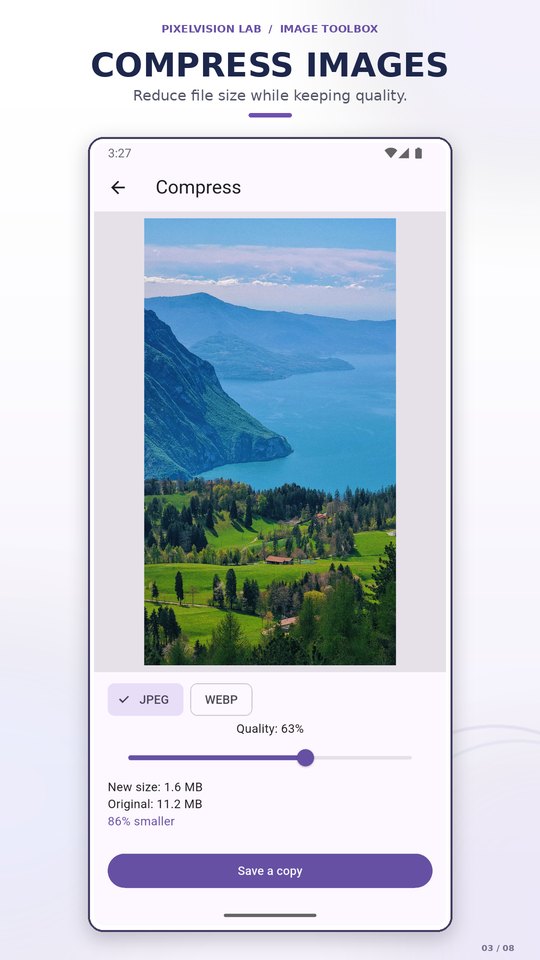
One quality slider, output as JPEG or WebP, with a live estimate of the resulting file size. Find the smallest file that still looks right.
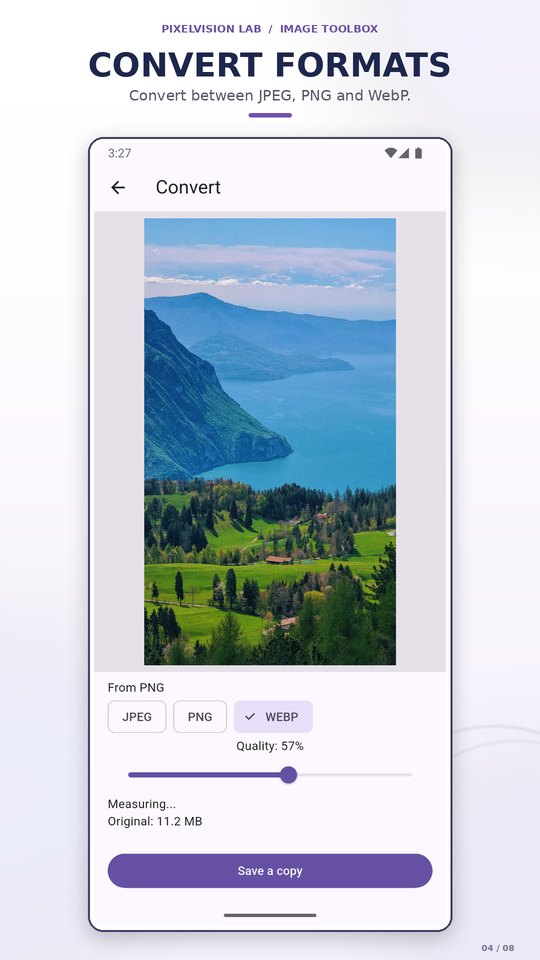
Move between JPEG, PNG and WebP. A quality control appears wherever the target format is lossy; for PNG it steps out of the way because nothing is lost.
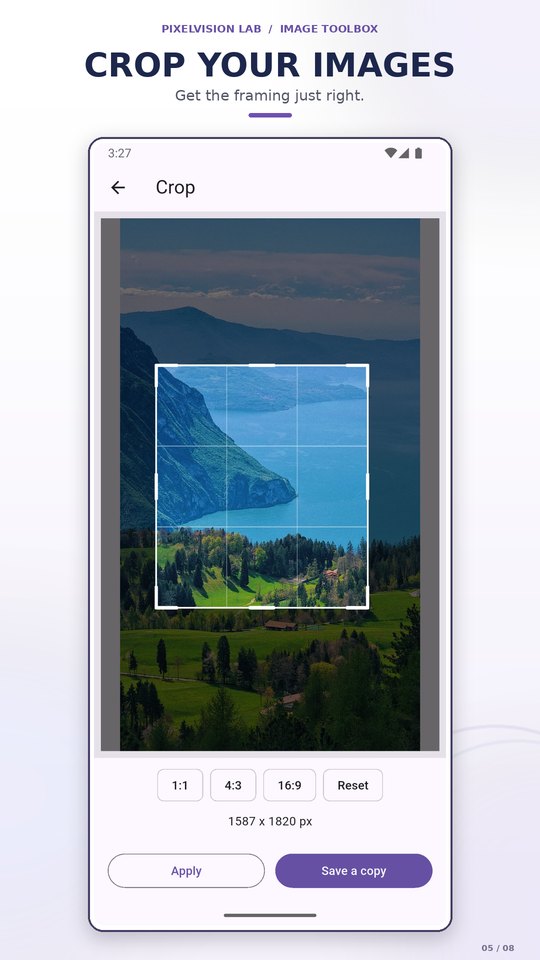
Drag a freeform selection with eight handles, or snap to 1:1, 4:3 and 16:9. A rule-of-thirds overlay stays on while you drag, and Reset restores the full frame.
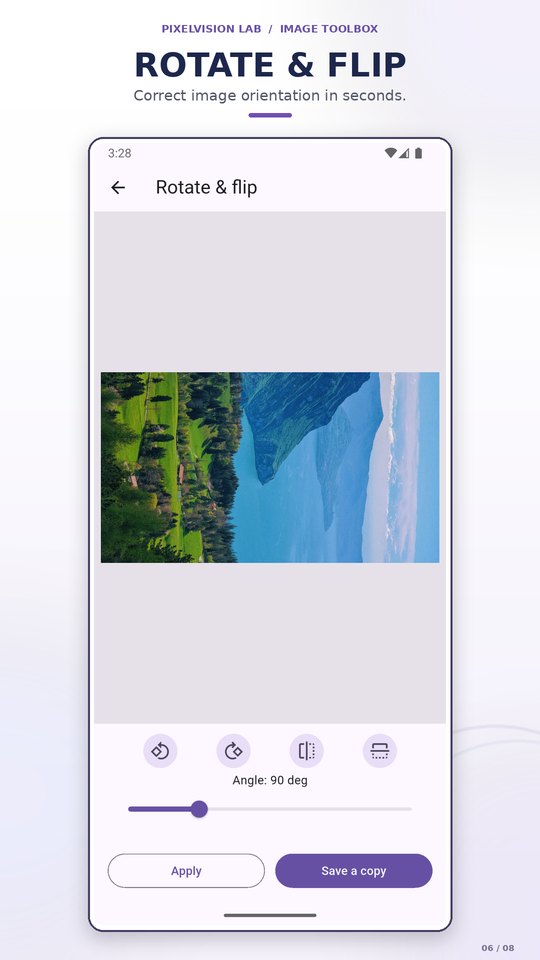
Quarter turns, horizontal and vertical flips, plus a 0–360° angle slider for straightening a scanned page or a slightly tilted horizon.
Twelve of them: blur, sharpen, denoise, edges, threshold, morphology, auto-enhance, brightness and contrast, HSV, grayscale, colour map and invert — each with its own controls.
Dimensions, megapixels, aspect ratio, orientation, format and file size, read from the original file. It also tells you whether the image has been edited in the current session.
The tonal distribution as luma, or as separate red, green and blue channels — useful before you reach for brightness or contrast.
Pick a filter, an output format and a quality level, then run that one recipe over a folder of photos. Progress is shown per file, a failed file is skipped and reported, and a Stop button ends the run early.
A metadata panel for the camera settings stored in a photo, and for copying the source path. Full EXIF parsing is still being built — for now the panel reports when a file carries no metadata.
Yes. All image processing happens on your device, so resize, compress, convert, crop, rotate and batch operations work in airplane mode.
No. Images are read from the file you pick, processed in memory on the device, and saved to an Image Toolbox album in your gallery. The original file is never modified, and nothing is sent to PixelVision Lab or to any third party.
JPEG, PNG and WebP for both input and output. Compress exports JPEG or WebP; Convert can write any of the three.
No watermark, no subscription and no account — every tool is unlocked from the first launch. The app is supported by a banner at the bottom of the screen and a rewarded ad before a batch run. If you would rather not see either, one small one-time purchase in Settings removes them, and Restore purchase brings it back on a new phone.
None for reading your photos. Images are opened through Android’s own file and photo picker, which hands the app only the file you chose. Processed images are saved to the gallery through MediaStore, which also needs no storage permission. Beyond that the app asks only for internet and network access, which Google AdMob and Firebase Analytics use — image processing never needs it. The app holds no camera permission either — the camera option just opens your phone’s camera app and takes the photo it returns.
Install Image Toolbox from Google Play and try it on a single image — it takes less than a minute.